Connect over Wi-Fi
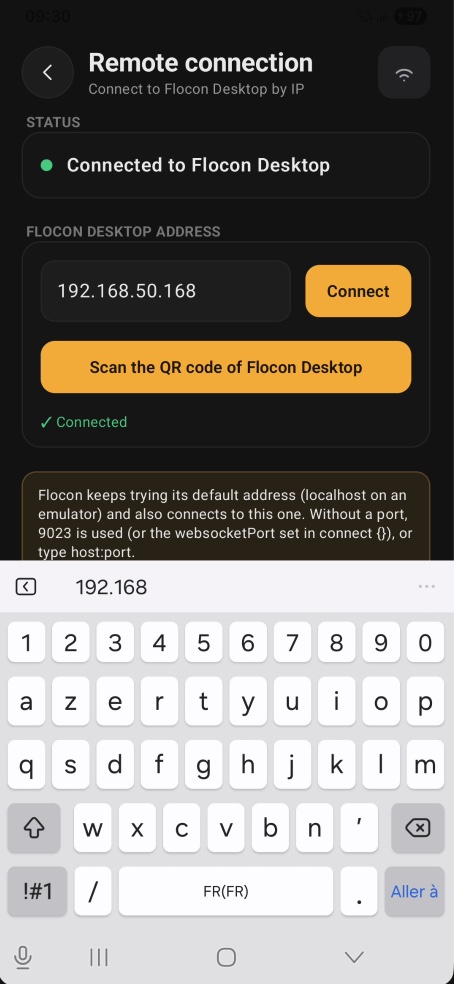
A physical device on Wi-Fi has no adb reverse: give the SDK the IP address of your computer. The device and the computer must be on the same network.
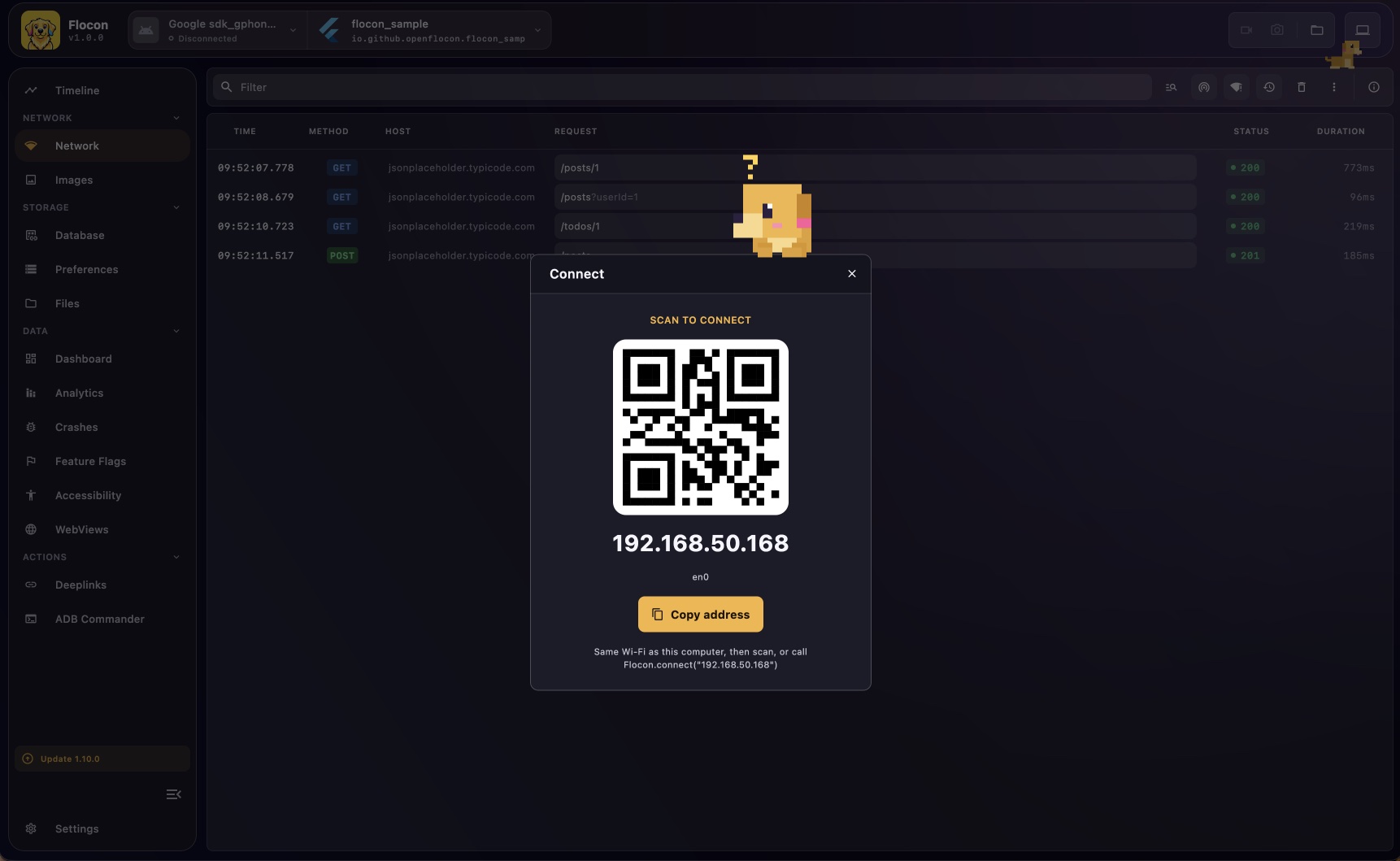
To find the address, click the Connect button (laptop icon) in the top bar of Flocon Desktop: it lists the local addresses of your computer, with a Copy address button. Or skip typing it and scan the QR code.
Give the address to the SDK
Pass it at start, or later (from a debug menu, for example) with Flocon.connect:
startFlocon(FloconContext(this)) {
    connect {
        address = "192.168.1.10"  // host, host:ws or host:ws:http
    }
    install(FloconNetwork)
}

// or, once the address is known
val result = Flocon.connect("192.168.1.10")   // suspend, returns a FloconConnectResult
Flocon.disconnect()                            // suspend, forgets the address
connect { } also has bufferCapacity (messages kept while not connected) and rememberLastAddress (the last connected address is tried again at the next launch and wins over address, true by default).
Flocon.initialize(config: FloconConfig(host: "192.168.1.20"))

// or with the builder
#if DEBUG
startFlocon { flocon in
    flocon.config(host: "192.168.1.20")
    flocon.install(.network)
}
#endif

// or later, once the address is known
let result = await Flocon.connect(address: "192.168.1.20") // FloconConnectResult
await Flocon.disconnect()
On iOS, the app needs NSLocalNetworkUsageDescription in Info.plist, and the user must allow the local network prompt shown the first time (see Troubleshooting).
The desktop shows a wifi icon next to a device connected by address.
The address format
An address is the IP address or host of your computer, with optional ports: host, host:ws or host:ws:http, for example 192.168.1.20:10023:10024. No scheme, no path. Ports go from 1 to 65535; an omitted port is the configured one (9023 / 9024 by default, see Ports), and the ports in the address win for that address. Anything else (a scheme, more than two ports...) is an invalid address: the connect call returns an InvalidAddress result instead of throwing.
When it does not connect
- Guest or corporate Wi-Fi often isolates devices from each other ("client isolation"): use a personal hotspot, or USB for Android.
- A VPN or a firewall on your computer can block the ports
9023and9024. - Several network interfaces (Ethernet + Wi-Fi, VPN...): pick the address of the network your phone is on in the Connect dialog.
More in Troubleshooting.