Connect with a QR code
Instead of typing the address of your computer, scan it. The device and the computer must be on the same network, as for a Wi-Fi connection.
1. Show the QR code on the desktop
Click the Connect button (laptop icon) in the top bar of Flocon Desktop. If your computer has several networks, pick the one your phone is on.
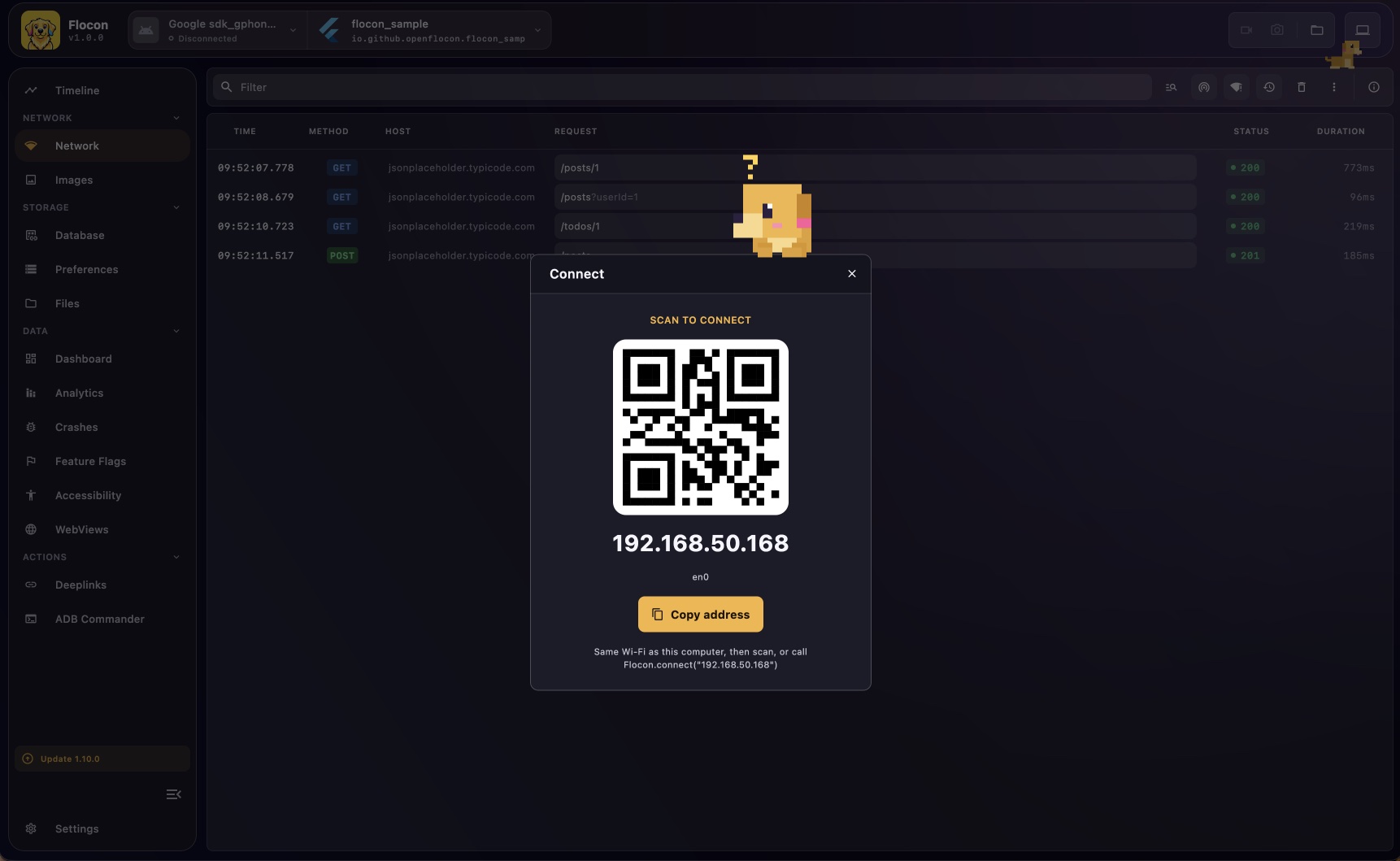
The QR code holds the IP address of your computer, followed by both ports (ip:ws:http) as soon as one of them is not the default.
2. Scan it from the app
Add a scanner to your app (in a debug menu, for example). Once the code is read, the SDK calls Flocon.connect with the address for you.
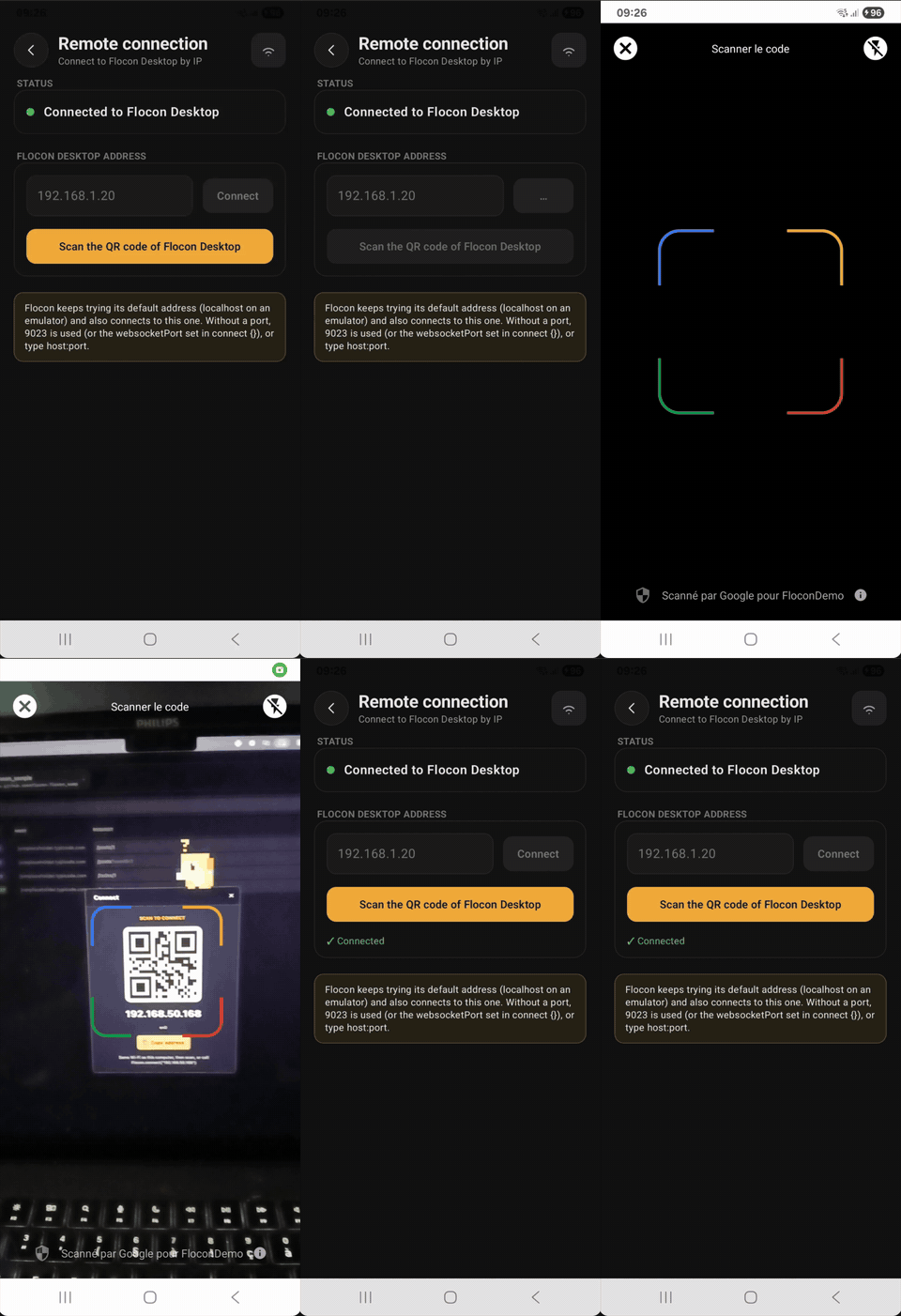
Android only. Add flocon-qr-scanner (and its -no-op in release), then call:
import io.github.openflocon.flocon.qrscanner.scanQrCodeAndConnect

val result = Flocon.scanQrCodeAndConnect(context) // suspend, null when the user closes the scanner
It opens the Google code scanner, so it needs no camera permission but requires Google Play Services; without it, the result is FloconConnectResult.Failed and you connect with the address instead.
FloconQRScannerView (AVFoundation, no extra dependency) reads the QR code and calls Flocon.connect(address:) for you. Your app needs NSCameraUsageDescription; the simulator has no camera, use Flocon.connect(address:) there.
Add the flocon_qr_scanner package (Android, iOS, macOS):
FloconQrScannerView(onResult: (result) {
  if (result is FloconConnectResultConnected) Navigator.pop(context);
})
It needs the camera permission: NSCameraUsageDescription (iOS, macOS), CAMERA (Android) and com.apple.security.device.camera (macOS entitlements). On Android, mobile_scanner needs minSdk 23, compileSdk 36 and the Android Gradle plugin 8.9.1 or higher.
If the app does not connect after the scan, see Connect over Wi-Fi.